LM Studio Review
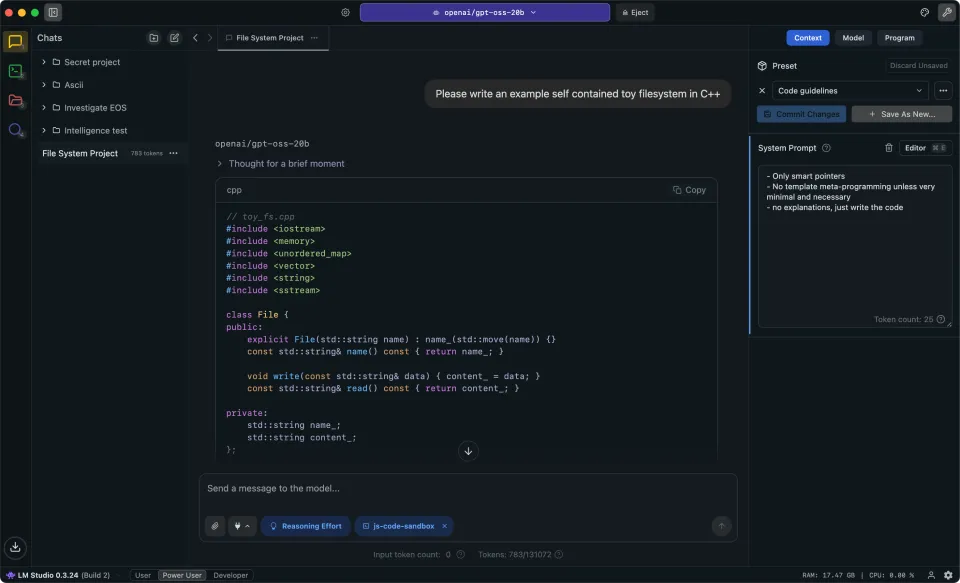
“A visual playground for local AI — privacy first, but with a heavy appetite for your RAM.”
If you’ve been diving into the world of local LLMs, you’ve probably heard the name LM Studio. While tools like Ollama were initially built to act as the quiet engine under the hood, LM Studio is the full dashboard and steering wheel combined. It’s designed for people who want the power of private, local AI but don't want to spend their afternoon typing commands into a terminal.
Let’s break down what that actually feels like in everyday use — the good, the resource-heavy, and the genuinely useful parts.
🧠 What LM Studio Actually Is
In a nutshell:
- LM Studio is a graphical application (GUI) that lets you discover, download, and run large language models locally on Windows, Mac, or Linux.
- It acts as a bridge to Hugging Face — the "GitHub of AI" — allowing you to search for and download thousands of different community-made models directly inside the app.
- Unlike CLI tools, it gives you a visual interface to tweak settings (like temperature and context length) on the fly via sliders and toggles.
- It also includes a built-in local server, meaning you can make your local AI "pretend" to be an OpenAI API so other apps can talk to it.
🔒 Privacy & Control — The Total Lockdown
If privacy is your main driver, LM Studio is essentially a fortress:
- Everything happens on your machine. Your prompts, the model's responses, and your chat history never leave your hard drive.
- There are no accounts required to get started; you just download the app and start pulling models.
- Because you can see exactly which file (GGUF) you are downloading and where it is stored, there’s a high level of transparency about what's actually running on your system.
- For those who fear "cloud leakage," this is as safe as it gets: the AI is physically trapped in your hardware.
🖥️ Offline & Local — The Digital Bunker
Once you have your models downloaded, LM Studio doesn’t need a single byte of internet data to function. This makes it ideal if you:
- Work in high-security environments where internet access is restricted.
- Want to ensure your intellectual property (like company code or private journals) never touches a server.
- Just want an AI that works during a power outage (provided your laptop has battery).
⚡ Speed & Hardware — The “VRAM Struggle”
This is where the honeymoon phase usually hits a wall:
- Local AI is a resource hog. LM Studio provides a "GPU Offload" slider, which lets you decide how much of the model goes to your graphics card (fast) versus your system RAM (slow).
- If you have an NVIDIA GPU or an Apple M-series chip, it feels like magic. If you’re running on an old office laptop with 8GB of RAM, it can feel like watching paint dry.
- The app is quite heavy; because it's a full visual suite, it consumes more overhead than a lean command-line tool.
- In short: the "free" nature of the software is offset by the hardware tax.
🔍 The Discovery Twist — An App Store for AI
The real killer feature of LM Studio is the integrated search. Instead of hunting through technical forums to find which model is best, you can:
- Search for a model (like Llama 3 or Mistral) directly in the app.
- See "compatibility" badges that tell you if your computer can actually handle that specific version of the model.
- Compare different "quantizations" (compressed versions of models) to find the balance between intelligence and speed.
🗣️ What Real People Are Saying
From community chatter:
🟢 “It’s the gold standard for beginners. I didn't have to touch a single line of code to get a model running.” — common praise from non-devs.
🟢 “The local server feature is a game changer for building apps without paying OpenAI fees during testing.” — developers love the API mimicry.
🔴 “It can be a memory hog. Sometimes it crashes my system if I try to load a model that's slightly too big.” — users with mid-range hardware.
⚠️ “Be careful with which versions you download from Hugging Face; always check the community ratings first.” — advice from the seasoned "local LLM" crowd.
🧾 Pros & Cons — Plain Talk
👍 Why You Might Love LM Studio
- Zero command-line knowledge required.
- Easy discovery of new models via built-in search.
- Total privacy; no data leaves your machine.
- Granular control over GPU/CPU offloading.
- Built-in local server for developers.
👎 What Might Frustrate You
- Heavy resource usage (RAM and VRAM).
- Can be slower than lean CLI tools like Ollama.
- The sheer number of model options can be overwhelming for a total novice.
- Not open-source (unlike some of its competitors).
🧠 Final Verdict — Who Is LM Studio For?
LM Studio is a great choice if you:
- Want the easiest possible "plug-and-play" experience for local AI.
- Prefer sliders and buttons over terminal commands.
- Love experimenting with different models from Hugging Face.
- Have a reasonably powerful machine (especially Mac M-series or NVIDIA RTX).
It might not be the one for you if:
- You are running on very limited hardware.
- You prefer open-source software above all else.
- You only need one specific model and want it to run as a background service rather than a full application.
🚪 Bottom Line
LM Studio turns the complex world of local LLMs into a consumer-friendly product. It removes the "tech barrier," allowing anyone with a decent computer to own their AI entirely. You trade some efficiency and open-source purity for an incredibly polished experience. If you want the power of a private brain on your desk without having to learn how to code, LM Studio is the most accessible door into that world.